

A smooth move starts with the books, not the import button. Switching from QuickBooks Desktop to Online means preparing a clean company file, transferring the data, and reviewing the results before reconnecting financial accounts. Reconcile bank and credit card accounts and categorize pending transactions before migrating.
It’s reasonable to expect the change to be straightforward, but the right approach depends on how your file is organized and which details your business relies on. Prepare carefully so you can spot missing or changed information before relying on the new setup.
This guide explains the migration process, which records to prepare and review, and how to reconnect accounts afterward. It also covers when professional help can be useful, especially if your books include complex workflows or need careful review. Use these steps to plan the move from your Desktop file to an Online setup that supports your day-to-day financial work.
Key Takeaways
- Assess your Desktop version and the records your business depends on before planning the move.
- Create a reliable backup so you have a clean reference point throughout the conversion.
- Consider professional help when your file is large or your accounting workflows need careful handling.
- After the transfer, reconnect financial accounts and review how the new setup supports your bookkeeping routine.
Professional conversion assistance
Professional support can help make the move a controlled accounting process. Start by identifying what must remain accurate after conversion.
-
Compare Desktop and Online features
List the workflows your team uses in QuickBooks Desktop, including user access, inventory tracking, and payroll. Compare each one with the QuickBooks Online plan you’re considering, since workflows may not work identically in both versions. Feature availability and user access depend on the plan. Costs also depend on the Online plan and Desktop licensing arrangement, so compare the terms that apply to your business instead of assuming one version costs less.
-
Check version and data eligibility
Record your Desktop edition and the data your business needs to retain. Have a conversion professional assess whether your edition and company file fit the current migration path. Review reports, transactions, and features individually, including specialized workflows. Don’t assume every report or feature transfers unchanged. Identify items that need separate handling before conversion, and keep accessible copies of important reports for comparison.
-
Prepare and back up the company file
Reconcile bank and credit card accounts, then categorize pending transactions before migration. Create a company-file backup and save it separately from the working file. Use it to compare balances and investigate conversion discrepancies. Common risks include unreconciled transactions, inconsistent categories, and assuming a successful import proves the records are correct. Review opening balances and key account totals before relying on the converted books.
-
Follow the conversion instructions
Follow the conversion workflow for your Desktop edition, then review the resulting Online company. The migration time depends on file size and processing; large QuickBooks Online data files can take hours to import into QuickBooks Desktop. No verified file-size limit is available here, so don't rely on an assumed cutoff. Keep the original Desktop file as your reference. Treat another conversion or a reversal as a separate decision, not an automatic undo; a retained backup gives you a comparison point.
Which QuickBooks Desktop versions and data can be converted to QuickBooks Online?
- Start with the exact QuickBooks Desktop edition and version shown in your company file. When switching from QuickBooks Desktop to Online, eligibility depends on the accepted conversion path and the file’s structure. Confirm that your specific file fits before planning the move. The product name alone doesn’t establish compatibility.
- List the information your business needs to carry forward, including customers, vendors, accounts, transactions, inventory records, payroll details, and reports. Check each category against the conversion process instead of assuming every record transfers in the same form. This inventory helps identify information that may need separate handling or later comparison.
- Identify reports and features that guide business decisions or recurring work. For example, note a sales report, custom field, or specialized inventory workflow. These may not appear or behave the same way in QuickBooks Online. Record each report’s purpose and the figures it supports so you have a reference for reviewing the converted company.
- Assess payroll and inventory as separate workflows. Map the outputs you use, such as payroll summaries, item lists, or inventory quantities, and compare those needs with the accepted conversion path. This can reveal where feature differences may affect reporting and help you plan how to handle the information after the transfer.
- Create an eligibility map with the Desktop edition, version, file, essential data categories, and reports requiring review. A careful approach to switching from QuickBooks Desktop to Online uses this map to test whether the conversion path fits your accounting needs. For payroll-related reporting, include an accounting review in the transition plan.
Sales reports, custom fields, and specialized inventory workflows may not appear or behave the same way in QuickBooks Online. Check payroll and inventory records against the accepted conversion path as well, rather than assuming they are categorically excluded.
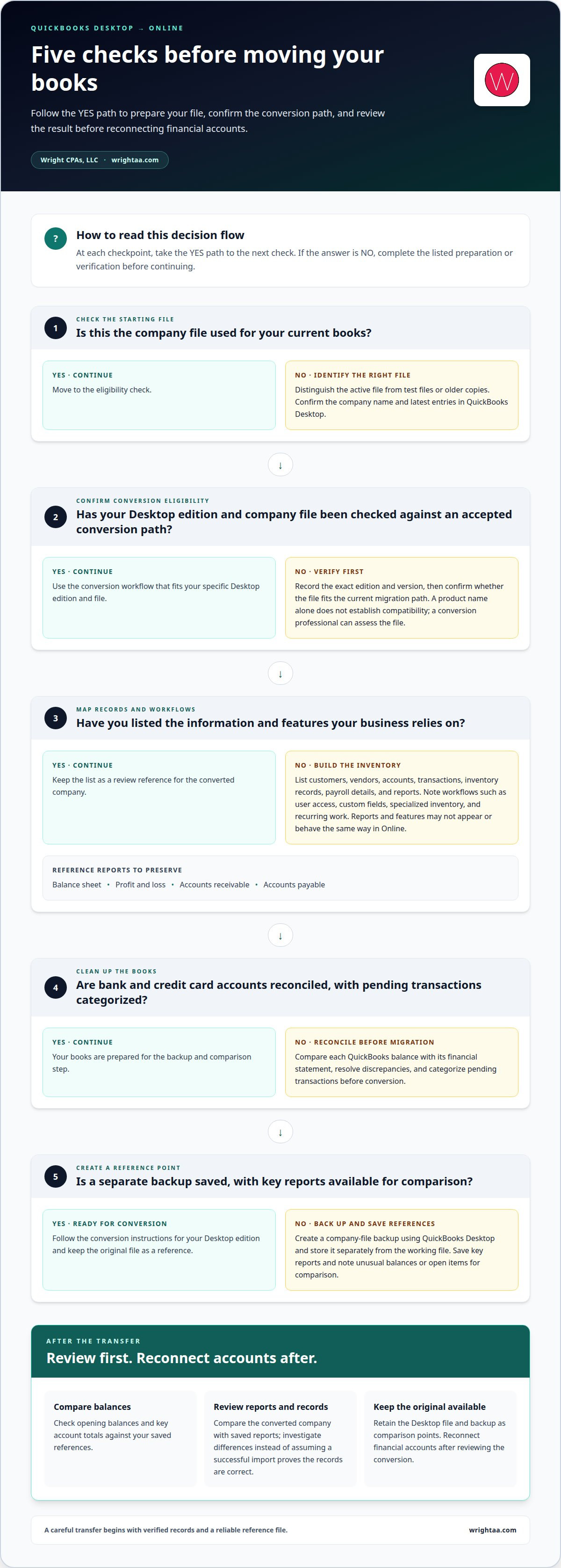
How do you prepare and back up a QuickBooks Desktop company file before migrating?
- Identify the QuickBooks Desktop company file that contains your active books. If your computer has test files or older company copies, distinguish them from the file used for current transactions. Confirm the company name and latest entries in QuickBooks Desktop. Starting from the wrong file can carry outdated records into the new setup.
- Reconcile bank and credit card accounts before preparing the conversion. Compare each QuickBooks balance with its financial statement, resolve discrepancies, and categorize pending transactions. For example, give a pending card charge a clear category before conversion. This gives the converted records a cleaner starting point for review.
- Review key balances and reports in the Desktop file. Save reference copies of the balance sheet, profit and loss statement, accounts receivable, and accounts payable. Use them to compare the converted company. Note unusual balances or open items, such as an old unpaid invoice, so they aren’t mistaken for conversion errors.
- Create a backup of the company file before migration. Use QuickBooks Desktop’s backup process and save the copy separately from the working file. Label it clearly with the company name and backup date. A separate copy preserves a reference if the working file changes during preparation or conversion.
- Keep the original Desktop file and backup available after the transfer. Compare key account totals and reports with your saved references. If an amount differs, trace it to its transactions before relying on the Online books. Keep the backup unchanged during your review so it remains a stable reference.
What are the step-by-step data conversion instructions for QuickBooks Desktop to Online?
- Open the prepared QuickBooks Desktop company file and confirm its company name. Sign in to the QuickBooks Online account intended for the new books, and keep the original Desktop file available throughout the process. This helps prevent confusion if your working environment contains multiple companies or test files.
- Choose the Desktop-to-Online import or conversion option shown in your account. Follow the prompts for the company file and review each selection before continuing. QuickBooks may show different steps depending on your edition and file. Follow the instructions displayed for that file rather than relying on directions for another version.
- Start the transfer only after confirming the destination company. Avoid entering new transactions in both versions during conversion. Large QuickBooks Online data files can take hours to import into QuickBooks Desktop. Let the process finish, and keep access to the source file while the new company is being populated.
- Open the converted company and compare key records with your Desktop references. Review account balances, open invoices, bills, customer and vendor lists, and relevant reports. Investigate differences before treating the Online figures as final. A completed import confirms that data moved, not that every detail matches your accounting workflow.
- Reconnect bank and credit card accounts in QuickBooks Online, then review the available transactions. Confirm account names and balances before accepting or categorizing downloaded activity. Avoid categorizing a transaction twice if it already appears in the imported records. This comparison helps keep your first Online reconciliation orderly and reduces duplicate entries.
- Keep the Desktop file and backup as reference copies while you establish the new routine. If conversion results need closer review, get help planning your QuickBooks transition before relying on uncertain balances.
Wright CPAs, LLC
Wright CPAs, LLC can support the accounting work involved in a move to QuickBooks Online. If converted records need to align with ongoing bookkeeping, payroll, or financial planning, the firm can connect those needs to your broader business finances. Tax Planning and Preparation and CFO Services can also support reporting and financial decisions affected by the transition.
Bring your questions about accounting workflows, payroll records, or how the new setup fits your reporting needs. The next step is a conversation about the financial work your business needs, not just moving data between platforms. Contact Wright CPAs, LLC to discuss your transition and accounting needs.
Build a steadier rhythm for your finances
As your team settles into switching from QuickBooks Desktop to Online, consider how the new system will support everyday decisions. A clear process for reviewing financial activity helps turn accounting records into a useful view of your business, not just a file you open at tax time. Decide who needs access, how information will be reviewed, and which reports will help guide decisions.
The transition is also an opportunity to align bookkeeping routines with how your business operates. As responsibilities, payroll needs, or financial priorities change, your accounting setup should remain useful and understandable. Reviewing those needs deliberately can help keep the system connected to the work it supports.
For guidance on the financial steps ahead, contact Wright CPAs, LLC. A thoughtful next step can help your accounting practices keep pace with your business.
Frequently Asked Questions
Which data, reports, and features do not transfer from Desktop to Online?
Sales reports, custom fields, and specialized inventory workflows may not appear or behave the same way in QuickBooks Online. Review payroll and inventory records against the accepted conversion path rather than assuming they are categorically excluded.
How long does QuickBooks Desktop to Online migration take, and what is the company file size limit?
Migration time depends on file size and processing; large QuickBooks Online data files can take hours to import into QuickBooks Desktop. No verified file-size limit is available.


